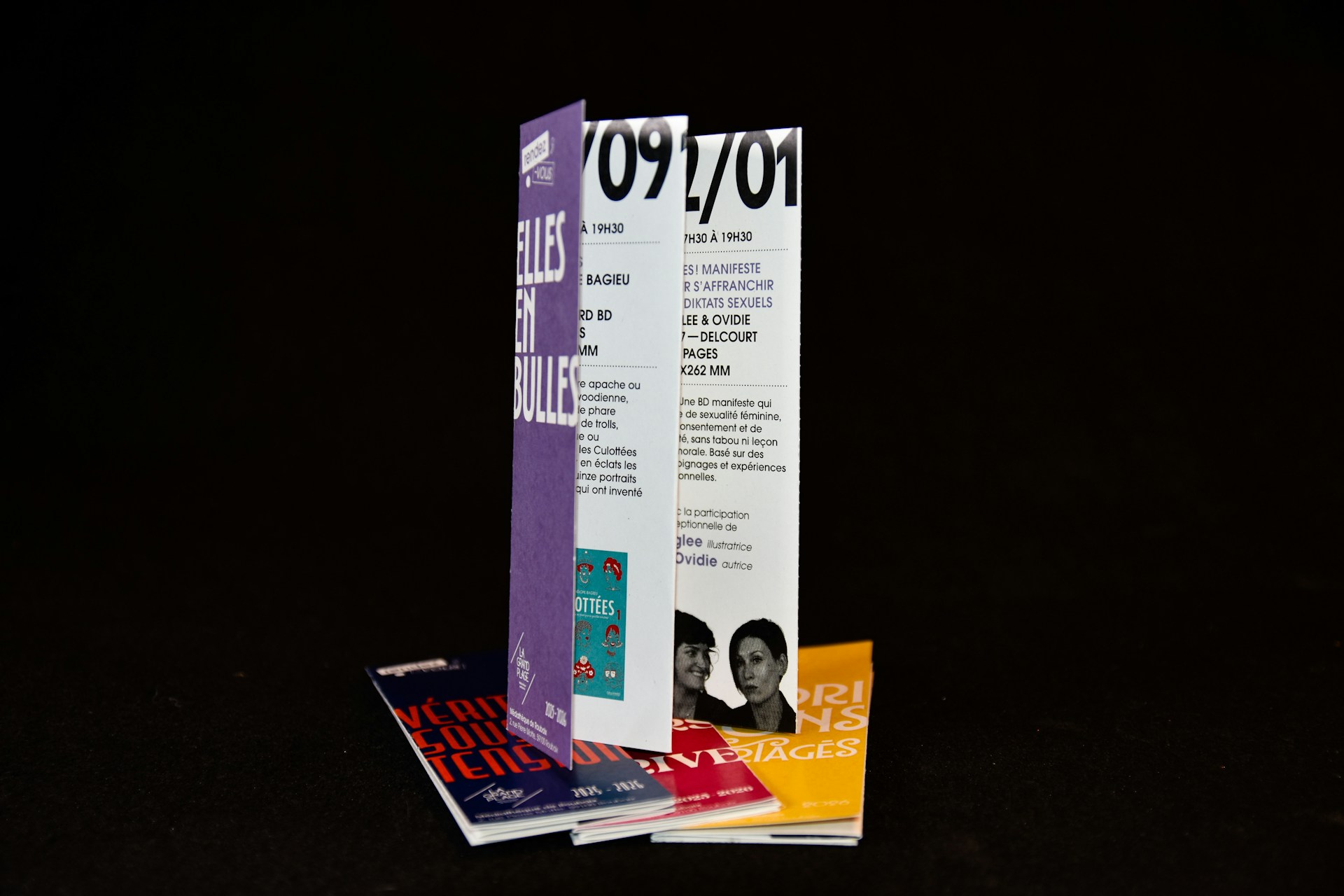
Quick answer: The best AI flyer generator for most people in 2026 is Canva, because it pairs prompt-based design with the biggest template library and an editor anyone can learn in ten minutes. Adobe Express is the better pick when print polish and commercially safe AI images matter. Design.com is best when you want flyers that automatically match your brand, with printing built in. PosterMyWall wins for events and promotions, Visme and Piktochart for data-heavy flyers, Venngage for non-designers who care about accessibility, Microsoft Designer for free personal projects, and VistaCreate for tight budgets.
A flyer used to be a small project with a long tail. You wrote the copy, hunted for a photo, argued with a template, exported a file the printer rejected, and tried again. An AI flyer generator collapses most of that. You describe the event or offer in a sentence or two, and a few seconds later you have several finished layouts with headlines, imagery, colors, and typography already chosen.
That sounds like a solved problem, and it nearly is. But the tools are not interchangeable. Some are brilliant at fast social-sized graphics and clumsy at print. Some generate beautiful drafts and bury the download button behind a paywall. One popular option restricts its free tier to personal use, which is a nasty surprise if you are promoting a bakery.
So we did the unglamorous work. We went through the official pricing pages, vendor documentation, and independent reviews published through autumn 2026, compared what each tool actually promises, and flagged the places where sources disagree. This guide ranks nine AI flyer generators, tells you who each one is for, lists real pros and cons, and answers the questions people keep asking about each. If you only want the shortlist, the table below is it.
AI Flyer Generator Comparison Table (2026)
| # | Tool | Best for | Free plan | Paid from (reported) | Standout AI feature |
|---|---|---|---|---|---|
| 1 | Canva | Best overall | Yes | About $10 to $15/month | Conversational design assistant, Magic Design |
| 2 | Adobe Express | Print polish, safe AI imagery | Yes | $9.99/month | Firefly generative credits |
| 3 | Design.com | On-brand flyers plus printing | Yes | About $3 to $9/month (varies) | Brand-aware generation from your business name |
| 4 | PosterMyWall | Events and promotions | Yes | $13/month | AI images, AI writer, event pages |
| 5 | Visme | Flyers built from documents or URLs | Yes (limited) | $12.25/month (annual) | AI Designer drafts from prompts, links, files |
| 6 | Venngage | Non-designers, accessibility | Yes (limited) | Roughly $10 to $19/month | Free AI flyer generator, accessibility checks |
| 7 | Microsoft Designer | Free personal projects | Yes | Via Microsoft 365 | Free monthly AI credits, Word and PowerPoint links |
| 8 | VistaCreate | Budget teams, social-first flyers | Yes | $10 to $13/month | Large template library, animated exports |
| 9 | Piktochart | Data-heavy, informational flyers | Yes (2 downloads) | $14/month (annual) | Text-to-infographic style generation |
Prices change often and sources disagree on several of them. Treat the figures as a guide and confirm on each tool’s pricing page before you pay.
What Is an AI Flyer Generator (and How Does It Work)?
An AI flyer generator is a design tool that turns a text description into a finished flyer layout. You typically type what the flyer is for, who it targets, and what details must appear: date, place, price, phone number. The tool then does four jobs at once.
- Layout: it picks a structure, usually a headline, a hero image, supporting details, and a call to action.
- Copy: many tools draft or tighten the headline and body text for you.
- Imagery: it pulls stock photos or generates original images from your prompt.
- Styling: it applies a color palette and font pairing, often your saved brand colors and fonts.
The important part comes next. The best generators do not hand you a flat picture. They give you an editable design, so you can fix the typo, swap the photo, or nudge the phone number without starting over. Anything that exports only a locked image is a toy, not a tool.
How We Evaluated These Tools
We weighed seven things, in roughly this order of importance:
| Criterion | What we looked for |
|---|---|
| Output quality | Clean hierarchy, readable text, believable imagery |
| Editability | Can you change anything after generation? |
| Print readiness | PDF export, bleed and crop marks, resolution control |
| Brand consistency | Saved logos, colors, and fonts applied automatically |
| Pricing clarity | What is free, what is paywalled, what is the real monthly cost |
| Licensing | Whether the output can be used commercially |
| Learning curve | How fast a first-timer gets to a usable flyer |
A note on method, because trust matters here. This is a research-based comparison built on official pricing pages and published reviews, not a lab test with our own stopwatch. Several roundups online that crown a single winner are published by companies with commercial ties to the products they rank, so we leaned on pricing pages and neutral reviews wherever we could, and we say so when information conflicts. Think of this as a well-informed shortlist. The final step, a ten-minute free trial with your own event details, is yours.
1. Canva: Best Overall AI Flyer Generator
Best for: beginners, small businesses, schools, nonprofits, and anyone who wants the widest choice of templates. Pricing (reported): free plan; Pro is listed at roughly $10 per month on annual billing and $15 on monthly billing, depending on the source and the day you check.
Canva is the default answer for a reason. Its flyer workflow gives you two ways in. You can browse a vast template library and customize, or you can describe what you need and let the AI build a first draft. In 2026 Canva also rebuilt its assistant around conversation, so you can tell it, in plain language, to make the headline bigger, switch to a darker palette, or turn a portrait flyer into a square social post.
What makes it the top pick is not any single feature. It is the lack of friction. The editor is forgiving, the asset library is enormous, and Magic Resize, a paid feature, turns one flyer into an Instagram post, a story, and a poster in a click. Brand Kits keep your logo, colors, and fonts one tap away, which matters if you make flyers every month and want them to look related. If you have already built a logo, our guide to creating a logo with AI shows how to feed it straight into a Brand Kit.
Print is where you should slow down. One independent 2026 review exported a print-ready PDF with bleed and crop marks and found it fine for a community-event flyer, while noting that color handling is not as exacting as professional software, so a high-stakes print run deserves a proof first.
Pros
- Largest template and asset library of any tool here
- Gentle learning curve; non-designers get results fast
- Brand Kit, Magic Resize, and background removal on Pro
- Conversational AI editing
- Print PDF export with bleed and crop marks
Cons
- AI usage is limited on the free plan and rationed by monthly credits even on paid plans
- Popular templates are everywhere, so flyers can look familiar
- Color control is not press-grade
- Pro pricing has risen over the past couple of years
Canva AI flyer FAQ
Is Canva’s AI flyer generator free? You can start free, but the free plan has a much smaller AI allowance. One 2026 pricing guide puts it at around 200 standard AI uses a month on Free versus 2,000 on Pro. For one flyer that is plenty. For weekly campaigns, you will feel the ceiling.
Can I print a Canva flyer professionally? Yes. Export a print PDF with bleed and crop marks, and ask your printer for a proof if color accuracy matters.
2. Adobe Express: Best for Print Polish and Commercially Safe AI
Best for: people who care about typography, print quality, and licensing peace of mind. Pricing (reported): free plan; Premium at $9.99 per month with 250 generative credits; team seats cost less per person.
Adobe Express is Adobe’s lighter, browser-based design app, and its flyer tools sit on top of Firefly, Adobe’s generative AI. The pitch is straightforward: the AI is positioned as commercially safe, trained on licensed material, which is exactly the reassurance a business wants before printing a few hundred flyers. Premium also unlocks the full template catalog, a huge Adobe Stock library, and the Adobe Fonts collection, and it is the typography that people tend to notice. Flyers made here often look a notch more refined than template-first competitors.
The trade-off is size. Canva’s template library is bigger, and Express can feel more structured, a little less playful. It is also a natural bridge to Adobe’s professional apps. If you outgrow flyers and start doing product or interface work, our roundup of the best AI tools for product designers shows where Adobe and its rivals fit.
Pros
- Strong typography and clean, modern templates
- Firefly-based generative tools positioned as commercially safe
- Affordable Premium plan with generous stock assets
- Easy path into the wider Adobe ecosystem
Cons
- Smaller community template library than Canva
- Premium assets and many AI features need a paid plan
- Credits run out if you iterate heavily
Adobe Express AI flyer FAQ
Is Adobe Express better than Canva for flyers? For polish and typography, many designers say yes. For sheer variety and beginner ease, Canva usually wins.
Do I need Adobe Creative Cloud? No. Express runs on its own, and higher Firefly plans bundle Express Premium in.
3. Design.com: Best for On-Brand Flyers With Built-In Printing
Best for: small businesses that want every flyer to look like it came from the same marketing team. Pricing (reported): free to start; paid plans are quoted anywhere from about $3 to $9 per month depending on billing and which roundup you read, with a website bundle at roughly $12 per month on annual billing.
Design.com approaches flyers from the brand side. You enter your business name and a few keywords, and it generates several flyer concepts that already use your colors and typography, then drops you into a drag-and-drop editor. Because it began as a logo and branding platform, the strongest part of the experience is consistency: the same identity shows up across flyers, cards, and social graphics. We covered the full story in our Design.com review, and if you are still building the brand itself, start with our guide to the best AI tools to create a custom logo.
Two practical perks stand out. Reports say you can download flyers in multiple file formats, and you can order prints directly on the platform, from a handful up to several thousand, in matte or glossy finishes. That closes the loop most generators leave open.
Be careful with pricing. Quoted numbers vary widely across sources, and reviews disagree on exactly what the free tier lets you download, so read the export screen before you commit.
Pros
- Brand-aware generation saves editing time
- Printing and delivery available inside the platform
- Pairs naturally with logos, cards, and websites
- Low entry price
Cons
- Template-based results can resemble other users’ designs
- Free-tier download limits are unclear across sources
- Less depth for complex custom layouts
Design.com AI flyer FAQ
Can Design.com create a flyer from just my business name? That is the basic workflow: a name plus keywords produces multiple concepts you can edit.
Does it print flyers? Yes, according to published reviews, with a range of quantities and paper finishes. Check shipping and costs at checkout.
4. PosterMyWall: Best for Events and Promotions
Best for: event organizers, venues, churches, schools, restaurants, and anyone promoting a date. Pricing (reported): free plan with pay-per-download options; Premium at $13 per month ($109 per year); Premium Plus at $30 per month ($319 per year), according to the company’s own support page. Older reviews quote lower figures, so prices have clearly moved.
PosterMyWall is built around the idea that a flyer is rarely the end of the job. You make the flyer, then you need an event page, an email blast, and a few social posts. The platform bundles all of that. AI features include an image generator, a background remover, an AI writer for tightening copy, and tools for subtitles and voiceovers if you turn your flyer into a short video. Paid plans come with monthly credits, roughly 100 on Premium and 250 on Premium Plus, so heavy users will notice the limit.
If your goal is filling seats or driving signups, this is the most purpose-built tool here. The cost is focus: it feels more like a promotion suite than a pure design tool, and many of the AI features are paywalled.
Pros
- Event pages, email, and social scheduling alongside design
- Wide AI toolkit, including image generation and an AI writer
- Very large template library
- Unlimited downloads on paid plans
Cons
- Most AI features sit behind Premium
- Credit limits for heavy AI use
- Higher tiers get pricey for a flyer-only need
PosterMyWall AI flyer FAQ
Is PosterMyWall free? There is a free plan, and some downloads are pay-per-use. Social-sized downloads are free; for unlimited high-resolution files you will want Premium.
Is it good for restaurants and clubs? Yes. Event and promotion features are its home turf.
5. Visme: Best for Flyers Built From Documents, Links, or Data
Best for: marketers and teams who already have the content (a PDF, a web page, a report) and want it turned into a flyer. Pricing (reported): free Basic plan; Starter at $12.25 per month on annual billing ($29 monthly); Pro at $24.75 per month on annual billing ($59 monthly).
Visme’s AI flyer generator has one trick the others mostly lack: it can draft a flyer from a text prompt, a URL, or an uploaded document. Point it at your event page or a product sheet, and it assembles a first version using the information already there, then lets you pick a style from the chatbot’s suggestions. For anyone who has ever copy-pasted details between five tabs, that is a real time saver.
Visme is also the better home for flyers that carry numbers: charts, comparisons, timelines, small infographics. It is a broader content platform, so there is more to learn and more going on in the interface. User reviews mention resizing and text-editing quirks and the occasional glitch, and the free plan is limited enough that serious use needs a paid seat. Compare that to Canva, where a team seat is cheaper, and Visme looks like a specialist tool you choose on purpose.
Pros
- Generates drafts from prompts, links, and uploaded files
- Strong charts, data widgets, and brand tools
- Flyers, one-pagers, and presentations in one workspace
Cons
- Costlier than Canva or Adobe Express for teams
- Free plan is restrictive, with limited AI credits
- Reviewers report some resizing and editing friction
Visme AI flyer FAQ
Can Visme turn a web page into a flyer? Yes. It accepts URLs and documents as input for its AI drafts, then you edit the result.
Is Visme good for print flyers? It can export print-friendly files on paid plans, but check resolution and bleed settings before sending to a printer.
6. Venngage: Best for Non-Designers Who Care About Accessibility
Best for: HR teams, educators, consultants, nonprofits, and anyone who wants a professional, readable flyer without design instincts. Pricing (reported): free plan; Premium is quoted between roughly $10 and $19 per month depending on the source and billing, so check the live pricing page.
Venngage began as an infographic tool, and that heritage shows in the best way: its flyers are clear, structured, and easy to read. It offers a free AI flyer generator, a one-click Brand Kit for logo, colors, and fonts, and design features that check color contrast, which is a thoughtful touch if your audience includes people with low vision. Its AI tools draw on a shared daily credit pool, so you are rationed per day rather than per month.
The catch is on the free plan. Reviewers consistently report that you can design for free but that downloads are restricted, so budget for a paid month if you need final files. Venngage is also template-led and less flexible than Canva when you want to break the grid.
Pros
- Free AI flyer generator for drafting
- Strong brand kit and accessibility-minded design
- Clean, corporate-friendly templates
Cons
- Free-plan downloads are limited
- Less layout freedom than Canva
- Pricing quoted inconsistently across sources
Venngage AI flyer FAQ
Can I use Venngage’s AI flyer generator for free? Yes for generating and editing, but downloading final files generally needs a paid plan.
Does Venngage check accessibility? It includes tools for checking color contrast and readability, which helps flyers work for more people.
7. Microsoft Designer: Best Free Option for Personal Projects
Best for: school events, family gatherings, community notices, and people already living in Microsoft 365. Pricing (reported): free with a Microsoft account, with a small monthly AI credit allowance; Microsoft 365 Personal and Family subscribers get up to four times more credits.
Microsoft Designer is the easiest free way to try an AI flyer generator. You describe the flyer, it builds layouts, and you can generate or retouch images with monthly credits. One review puts the free allowance at 15 credits a month, rising to 60 on a Microsoft 365 Personal plan, with credits shared across Copilot in Word, PowerPoint, and Windows apps like Paint. If your life already runs through Word and OneDrive, the integration is a genuine convenience.
Here is the warning you need before you build a bakery’s grand-opening flyer. Reports on Microsoft’s consumer terms say the free Designer service is restricted to personal, non-commercial use, and a Microsoft 365 subscription does not automatically change that. If the flyer promotes a business, read the current terms or choose a tool with clear commercial licensing. Designer also has a smaller template library than Canva and no real-time team co-editing.
Pros
- Free to start, with built-in AI image generation
- Tight Microsoft 365 and Copilot integration
- Simple, quick for casual flyers
Cons
- Consumer terms may restrict business use
- Small monthly credit allowance
- Lighter templates and collaboration than rivals
Microsoft Designer AI flyer FAQ
Is Microsoft Designer free? Yes, with a Microsoft account and limited monthly AI credits.
Can I use it for my business? Check Microsoft’s current terms first. Published reports describe the consumer service as personal and non-commercial.
8. VistaCreate: Best Budget Option for Social-First Flyers
Best for: small teams and creators who publish flyers mostly as social graphics and want predictable, low pricing. Pricing (reported): free Starter plan; Pro is listed at $10 per month on several trackers and about $13 on others, and one source says the Pro price covers up to ten seats.
VistaCreate, which many people still remember as Crello, is a quiet value pick. The free plan includes a large template library and limited AI tools, and Pro adds premium templates, brand tools, and more assets. It also supports animated exports, which is useful when a flyer needs to live as a moving Instagram post. Competing roundups frequently describe it as a budget-friendly Canva alternative where one price covers a whole team.
Be realistic about the AI. Team features and AI capabilities are described as basic compared with Canva Pro. If you want the smartest prompt-to-flyer experience, look higher on this list. If you want a solid editor and a low bill, this is it.
Pros
- Low price and team-friendly pricing
- Large template library and animated exports
- Easy for social-first flyers
Cons
- AI is basic compared with Canva or Adobe
- Smaller ecosystem and fewer integrations
- Pricing figures vary by source
VistaCreate AI flyer FAQ
Is VistaCreate really free? The Starter plan is free but limited; Pro unlocks premium templates and tools.
Is VistaCreate better than Canva? It is cheaper, not stronger. Canva wins on AI and library size.
9. Piktochart: Best for Data-Heavy, Informational Flyers
Best for: public health notices, school and nonprofit updates, internal communications, and any flyer that explains something. Pricing (reported): free plan with just 2 PNG downloads in total; Pro at $14 per month on annual billing or $29 monthly.
Piktochart is the specialist for flyers that need to inform. Its AI generators turn text into infographics, presentations, and reports, and the flyer templates inherit that clarity: strong hierarchy, simple icons, and room for statistics. It is also built with accessibility in mind, including WCAG-minded features.
The free plan is the sticking point. Two PNG downloads across the life of the account is a taste, not a plan. And if you only make a flyer occasionally, Canva’s free plan is a gentler place to start. Piktochart pays off when infographics and reports are a regular part of your work, and you want one tool for all of it.
Pros
- Excellent for data-driven visuals and clear information design
- AI generators for infographics, reports, and presentations
- Accessibility-minded features
Cons
- Free plan is extremely limited
- Overkill for simple promotional flyers
- Fewer lifestyle and event templates
Piktochart AI flyer FAQ
Is Piktochart good for event flyers? It is better for informational flyers. For events, PosterMyWall or Canva fit more naturally.
How many downloads does the free plan allow? Reported at two PNG downloads total, so plan on upgrading for real use.
Which AI Flyer Generator Should You Choose?
Stop comparing features and start with your situation. This table will save you an afternoon.
| Your situation | Best choice | Why |
|---|---|---|
| First flyer, no design experience | Canva | Gentlest learning curve, biggest library |
| Printing hundreds of flyers for a business | Adobe Express | Typography, commercially safe AI |
| Need flyers to match your brand every time | Design.com | Brand-aware generation, printing built in |
| Promoting an event or sale | PosterMyWall | Event pages, email, social tools |
| Content already exists as a PDF or web page | Visme | Drafts from links and documents |
| Accessibility and clean corporate look | Venngage | Contrast checks, brand kit |
| Free flyer for a personal occasion | Microsoft Designer | Free credits, Microsoft integration |
| Tight budget, mostly social posts | VistaCreate | Low price, animated exports |
| Flyer is mostly facts and figures | Piktochart | Information design, AI infographics |
A useful shortcut: start with Canva. If it frustrates you, the reason will tell you where to go next. Too generic, try Adobe Express. Too much to manage, try Design.com. Need more promotion tools, try PosterMyWall.
How to Make a Great Flyer With AI in 7 Steps
The tool matters less than most people think. What separates a flyer people read from one they bin is the brief you give it.
- Write the one-sentence goal. What should a reader do after seeing it? Buy, attend, call, scan.
- Gather the facts. Date, time, place, price, contact, and one proof point.
- Prompt specifically. Include audience, mood, and colors. Example: “Flyer for a Saturday farmers market opening, family audience, warm and rustic, green and cream palette, headline about fresh local produce, time 9 am to 2 pm, address and website at the bottom.”
- Generate several versions. Compare them at thumbnail size. If the headline is not readable from across a room, move on.
- Edit the words first. AI headlines are often fine but generic. Replace vague claims with something concrete.
- Apply your brand. Add your logo and brand colors. If you do not have a logo yet, our list of AI tools for logo graphic design and the best logo makers with free templates will get you there quickly. Need a matching symbol? Try one of the free AI icon generators.
- Export for the right use. Print PDF for the printer, PNG or JPG for social and email.
Flyer Size and Export Cheat Sheet
| Format | Common size | Best use |
|---|---|---|
| US Letter | 8.5 x 11 in | Standard handouts and posting |
| Half Letter | 5.5 x 8.5 in | Handouts, counter displays |
| A4 | 210 x 297 mm | Standard outside the US |
| A5 | 148 x 210 mm | Compact handouts |
| Social square | 1080 x 1080 px | Instagram and Facebook feeds |
For print, aim for 300 DPI, add a bleed of about 0.125 inch (3 mm), and keep important text well inside the safe margin. For digital, a PNG or compressed JPG is usually enough.
Common AI Flyer Mistakes to Avoid
- Too much text. A flyer is a glance, not a brochure. One headline, three details, one action.
- Trusting AI spelling. Generated images can garble text. Add words as editable text rather than baked into an image, and proofread names, dates, and phone numbers.
- Low-resolution exports. A sharp screen preview can print blurry. Export at print quality.
- Ignoring licensing. Free plans and consumer tiers often restrict commercial use. Read the terms.
- Skipping the call to action. Tell people exactly what to do and how.
- Forgetting the follow-through. A flyer works harder next to a matching business card. See our guide to the best AI business card makers, and if the flyer points to a web page, our tested roundup of AI website builders can help you build it fast.
Can You Use an AI-Generated Flyer Commercially?
Usually yes on paid plans, but terms differ, and “usually” is not a license. Check four things: whether your plan allows commercial use, whether AI-generated images carry any restrictions, whether stock elements are cleared for print, and whether a consumer-only tier like free Microsoft Designer applies to your case. On ownership, purely AI-generated material may not qualify for copyright protection under current US rules, so original text, your own logo, and your own photos make your flyer more defensible. This is general information, not legal advice. For a business launch, our founder’s roadmap to starting a business with AI covers the wider picture.
Frequently Asked Questions About AI Flyer Generators
What is the best AI flyer generator overall? Canva, for most people. It combines AI drafting, a huge template library, and a beginner-friendly editor. Adobe Express and Design.com are strong alternatives for polish and brand consistency.
Is there a free AI flyer generator? Yes. Canva, Adobe Express, Design.com, PosterMyWall, Venngage, Microsoft Designer, VistaCreate, and Piktochart all offer free starting points. Free plans usually limit AI credits, premium assets, or high-resolution downloads.
Which AI flyer maker is best for print? Adobe Express and Canva are the safest bets for print PDFs, and Design.com offers printing inside the platform. For any large run, order a small proof first.
Can AI write the text on my flyer? Yes. Tools like PosterMyWall and Canva include AI writing features. Still, edit the copy: specific, human details beat generic AI phrasing.
Do I still need a graphic designer? Not for a standard promotion or event. For a major brand campaign, use AI for exploration and a designer for the final polish.
How long does it take to make a flyer with AI? A first draft takes seconds to a couple of minutes. A finished, proofread flyer usually takes ten to thirty minutes once you have your details ready.
What file format should I use? Print PDF for printing, PNG or JPG for social media, email, and websites.
Are AI flyer generators accurate with text? Not always. Image-generation models can distort lettering, so keep key details as editable text and proofread everything.
Final Verdict: Which AI Flyer Generator Is Best?
- Canva is the best AI flyer generator overall.
- Adobe Express is best for print polish and commercially safe AI.
- Design.com is best for on-brand flyers with built-in printing.
- PosterMyWall is best for events and promotions.
- Visme is best for drafting flyers from documents and links.
- Venngage is best for accessible, non-designer-friendly flyers.
- Microsoft Designer is best for free personal projects.
- VistaCreate is best on a budget.
- Piktochart is best for data-heavy, informational flyers.
The honest truth is that all nine will get you a decent flyer. The best one is the tool whose limits you can live with: the paywall you can afford, the learning curve you will tolerate, the licensing you can trust. Pick one, run your real event details through it, and judge the output at thumbnail size. If it passes that test, you are done.
Related Reading on LA Tech Post
- Create a Logo With AI in Minutes: 7 Brand Design Tools to Try in 2026
- 10 AI Tools for Logo Graphic Design and Logo Editor in 2026
- Top 5 Free AI Icon Generators in 2026
- 7 Best AI Business Card Maker Tools for 2026
- Design.com Review (2026): Is It Worth It for Small Business Logos?
- Best AI Tools for Product Designers in 2027
Disclosure: Pricing and plan details were gathered from official pages and published reviews through late October 2026 and change frequently. Confirm current terms before you buy.






[…] World’s Best AI Flyer Generator: 9 Top Tools Tested And Ranked for 2026By Tech Expert TeamQuick answer: The best AI flyer generator for most people in 2026 is Canva, because it pairs prompt-based design with the biggest template library and… Leave a Comment […]
[…] World’s Best AI Flyer Generator: 9 Top Tools Tested And Ranked for 2026By Tech Expert TeamQuick answer: The best AI flyer generator for most people in 2026 is Canva, because it pairs prompt-based design with the biggest template library and… 1 Comment […]
[…] World’s Best AI Flyer Generator: 9 Top Tools Tested And Ranked for 2026By Tech Expert TeamQuick answer: The best AI flyer generator for most people in 2026 is Canva, because it pairs prompt-based design with the biggest template library and… 2 Comments […]
[…] World’s Best AI Flyer Generator: 9 Top Tools Tested And Ranked for 2026By Tech Expert TeamQuick answer: The best AI flyer generator for most people in 2026 is Canva, because it pairs prompt-based design with the biggest template library and… 3 Comments […]
[…] World’s Best AI Flyer Generator: 9 Top Tools Tested And Ranked for 2026By Tech Expert TeamQuick answer: The best AI flyer generator for most people in 2026 is Canva, because it pairs prompt-based design with the biggest template library and… 4 Comments […]
[…] World’s Best AI Flyer Generator: 9 Top Tools Tested And Ranked for 2026By Tech Expert TeamQuick answer: The best AI flyer generator for most people in 2026 is Canva, because it pairs prompt-based design with the biggest template library and… 5 Comments […]